
Friends and chat
Talk to the players around you, message your friends, whisper to anyone in the game, and block people you do not want to talk to.
Game chat
- Press Enter to open the message box, type, and press Enter again to send
- Pick the channel in front of the box: Nearby = players near you, Party = your Party members, World = everyone in the game on every Map (one line every 5 seconds; hide it with the Show button)
- Players' messages always show at the bottom right of the screen, even while the box is closed
Whispers do not appear in this chat; they stay in the Messages window only (see the next section).
Player menu: friend request, whisper, block
Hold Shift and click another player to open that player's menu.
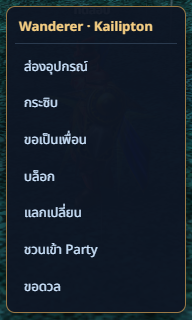
The player menu (Shift + click a player)
- กระซิบ (Whisper) opens the Messages window with that player
- ขอเป็นเพื่อน (Add friend) sends a friend request; the other player must be in the game and accept
- บล็อก (Block) stops messages and friend requests from that player (asks you first)
Friend list
Press the Friends button (the people icon) above the quick slots to open your friend list. There is no limit on the number of friends.
The friend list: a green dot = in the game, with Level, race and the Map they are on
- Green dot = the friend is in the game, with the Map they are on; grey dot = offline
- A notice pops up when a friend comes online
- คุย (Chat) opens the Messages window with that friend
- ลบ (Remove) ends the friendship on both sides (asks you first)
- A search box at the top filters the list
Accepting a friend request
When someone asks to be your friend, a card appears under the minimap. Press รับ (Accept) or ปฏิเสธ (Decline) within 60 seconds. The request also shows at the top of the Friends window.
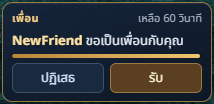
The friend request card
The Messages window (friends and whispers)
Press the Messages button (the chat bubble) next to the Friends button. The red number on it counts unread messages.
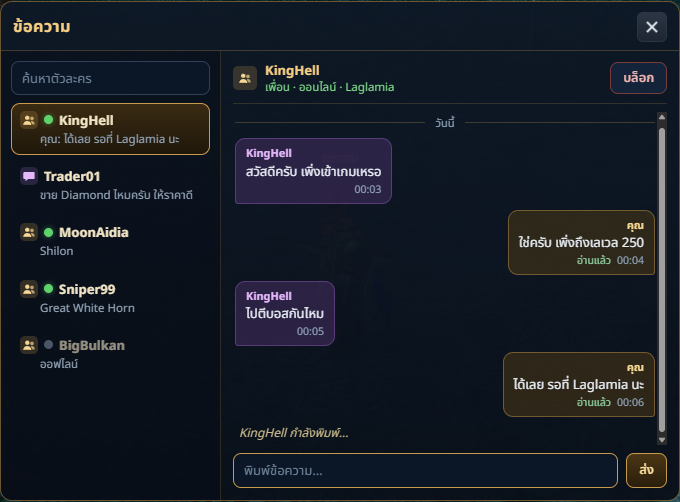
Left: the people you talk to · Right: the conversation
- The left side lists your friends and everyone you have whispered with, the latest conversation on top, with a search box
- Gold person icon = friend, purple bubble icon = whisper (not a friend yet)
- The conversation header says whether the other player is online and on which Map, or offline
- Their messages are on the left, yours on the right, each with the sender's name and the time, grouped by day
- อ่านแล้ว (Read) appears under your message once the other player has opened it
- … กำลังพิมพ์ (is typing…) appears at the bottom while the other player is typing a reply
- Messages are kept: they are still there after you log out and back in; scroll up for older ones
Messaging someone who is not in the game
- A friend who is offline can still be messaged; the message waits until they log in
- Someone who is not a friend can only be whispered while they are in the game
Talking to someone who is not your friend yet? Press เพิ่มเพื่อน (Add friend) in the conversation header.
Translating messages into your language
Other players' messages in the chat and in the Messages window have a แปล (Translate) button. Press it and the message changes into the language of the country you chose; press it again (ต้นฉบับ / Original) to see the original.
The Translate button under the other player's message
- Translation runs on your own computer with the translator built into Google Chrome or Microsoft Edge 138 or newer, free of charge
- When you press login the browser starts downloading the translator; it downloads once and is kept
- Common shorthand such as pt, lf, dps, afk (and Thai ones) is understood before translating
- The translation is shown on screen only and never changes the message; after a new login you see the original
- If the translator does not have your country's language yet, messages are translated into English
Choosing your country
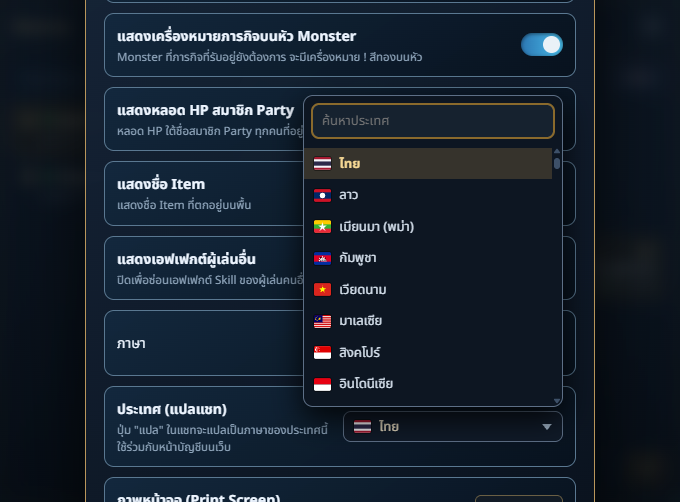
Choose your country when you register, and change it later on the Account page of the website (security tab), Country card. You can search country names in Thai or English. The game itself has no setting for it.
The game runs only in Google Chrome or Microsoft Edge version 138 or newer; other browsers show a notice with download links.
Blocking and unblocking
Block from the player menu or with the บล็อก (Block) button in the conversation header. You are always asked to confirm first.
- You get no messages or friend requests from a blocked player
- The blocked player is not told: they can still type and see their messages as sent, but those messages stay on their side only
- A friend can be blocked and stays your friend
- A blocked conversation has no message box; an ปลดบล็อก (Unblock) button takes its place
- After you unblock, messages sent while they were blocked never appear
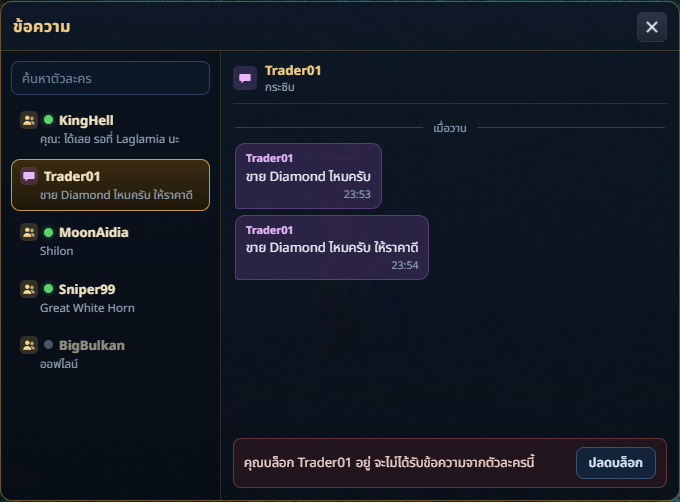
A conversation with a blocked player: no message box, an Unblock button instead
Your block list
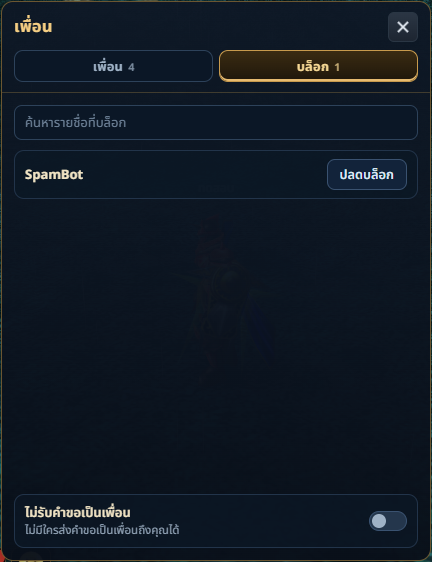
In the Friends window, the บล็อก (Blocked) tab lists everyone you blocked. Press ปลดบล็อก (Unblock) to unblock (asks first). The ไม่รับคำขอเป็นเพื่อน (Refuse friend requests) switch stops everyone from sending you friend requests.
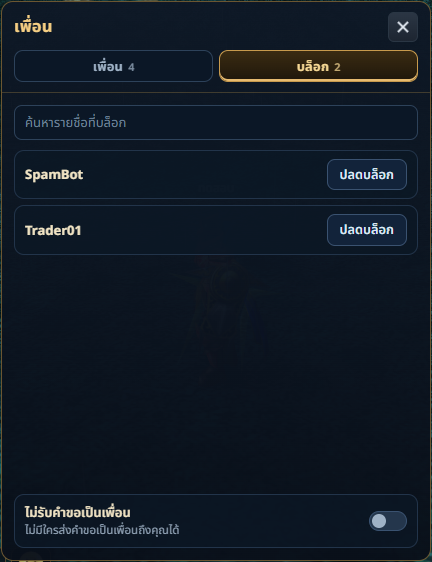
The Blocked tab of the Friends window